Monday, 4 June 2012
How to Update Internet Setting
Please try the following.
1. Close all Internet Explorer versions
2. Select START-->RUN
3. Type the following:
gpupdate /force
There is one space between the gpupdate and the /force. This should update the internet settings for your machine.


Wednesday, 30 May 2012
SPPID_Clone a Catalog Item (symbol)
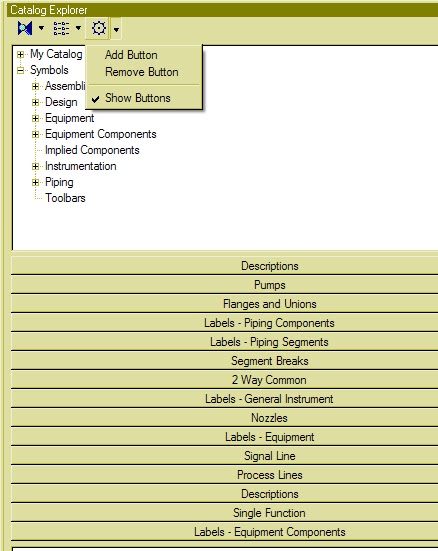
- Click the item you want to copy in the Catalog Explorer List view.
- On Catalog Explorer File menu, click Clone. The software places a copy of the selected item in the List view.
- Depending on your editing privileges, you may or may not be able to clone items from certain catalogs. See your system administrator for information regarding your current editing privileges.
- Cloning symbols differs from creating new symbols. When you clone an existing symbol, the software copies all of the graphics and associated properties for the original symbol to the new, cloned symbol. You can then modify the properties of the cloned symbol. When you create a new symbol, you must define all of the graphics and properties for the new symbol.
SPPID_Training Lesson 6_How to use stockpile
1. Re-use OPC.
As "SPPID_Can not do and Can do" mentioned: UN-needed OPC should be deleted into stockpile.
How to re-used OPC?
At first, Open a drawing that you're going to put OPC on. then click the stockpile sign.
Notice: pick up the OPC that can be used.OPC should always be paired. you need find two same number OPC in the stockpile. for example: 301.Off Drawing Instrument Connector. Don't pick the single number OPC.


As "SPPID_Can not do and Can do" mentioned: UN-needed OPC should be deleted into stockpile.
How to re-used OPC?
At first, Open a drawing that you're going to put OPC on. then click the stockpile sign.
Notice: pick up the OPC that can be used.OPC should always be paired. you need find two same number OPC in the stockpile. for example: 301.Off Drawing Instrument Connector. Don't pick the single number OPC.

left click the OPC sign in the stockpile. it won't work if you click the text.

Open another drawing that you want to connect with same OPC.
2. Clean deleted OPC in the drawing, get more paired OPC to be re-used.
For example: OPC 314, open drawing 17-xxx, if the OPC in the EDE shows green color, then delete it to the stockpile, not delete to drawings. then you will find the pair OPC 314 in the stockpile.


Monday, 28 May 2012
Friday, 25 May 2012
SPPID_Cannot do and Can do_ for new user

- Copy/Paste command:
Cannot do: Part of drawings copy/paste is not recommended. It is
possible to lead to duplicate components, and difficult
to fix.
possible to lead to duplicate components, and difficult
to fix.
Can do: Single element copy/paste is ok, only concern is: after
click paste, the component is covered on the original
one, you need use the move command to move to the
place that you want. Part of drawing, please make
click paste, the component is covered on the original
one, you need use the move command to move to the
place that you want. Part of drawing, please make
an assembly.
Thursday, 24 May 2012
SPPID_Training Lesson 3_Making assemblies
Making assembly:
1. select the part that you want to be assembly, then click file-Save as Assembly.


3. You're going to get a window under Assemblies folder. give the name of your assembly and then save it.

*Attention:
(1) if the line connected with OPC, you need disconnect the line first, then make assembly. otherwise it will shows error.
(2) Assembly will not work for "Auxiliary Graphics".

Subscribe to:
Posts (Atom)